
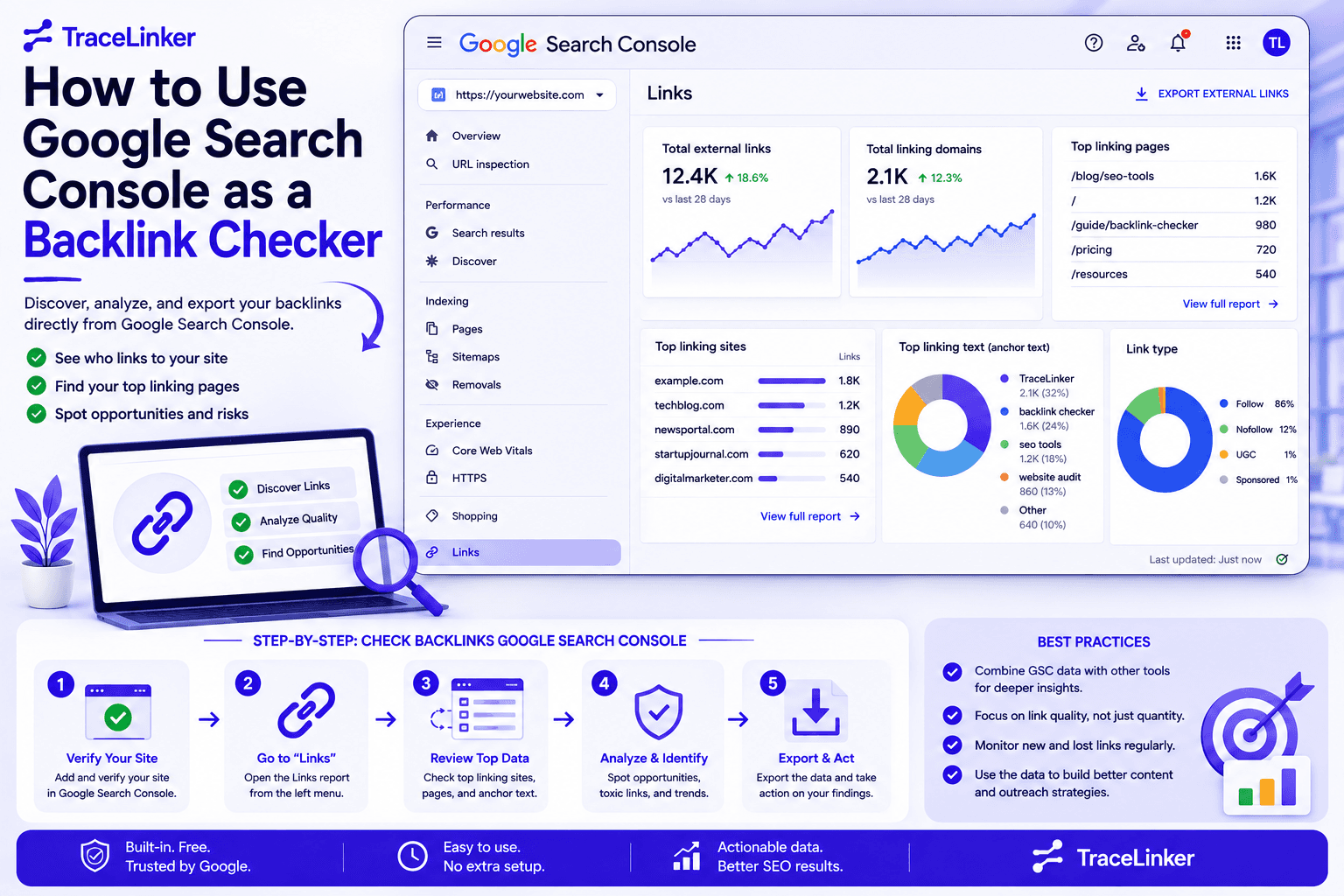


How to Use Google Search Console as a Backlink Checker
Backlinks remain one of the most important ranking signals in SEO. Knowing who links to your site, which pages they link to, and what anchor text they use gives you the insight you need to improve authority, spot risks, and prioritize outreach.
Google Search Console offers a free built-in way to check backlinks: the Links report. While it is not as detailed as a dedicated backlink tool, it is directly from Google, which makes it a trustworthy starting point for any site owner or SEO team.
In this guide, we walk through how to use Google Search Console as a backlink checker, step by step. We also cover what the report shows, what it does not show, and how to turn the exported data into an action plan with TraceLinker.
What Is the Google Search Console Links Report?
The Links report in Google Search Console shows internal and external links that Google has discovered for your property. It is located in the left-hand menu under Links and is divided into two main sections:
- External links: backlinks from other sites pointing to your site.
- Internal links: links within your own site pointing to other pages on your site.
Google groups the data by canonical URL and root domain. That means subdomains, protocols, and URL parameters are usually stripped before grouping. For example, https://www.example.com/page and http://example.com/page may be shown together under example.com.
The report is not a complete list of every link on the web. It is a sample designed to help you understand your overall link profile. The UI limits tables to 1,000 rows, but you can export up to 100,000 rows as a CSV or Google Sheet for deeper analysis.
Step 1: Verify Your Site in Google Search Console
Before you can see any backlink data, you must verify ownership of your site in Google Search Console. If you have not done this yet, follow these steps:
- Go to search.google.com/search-console.
- Sign in with a Google account.
- Click Start now and add your property.
- Choose Domain if you want to cover all subdomains and protocols, or URL-prefix if you only want a specific version.
- Complete the verification method recommended by Google. This is usually a DNS record for domain properties or an HTML file, meta tag, or Google Tag for URL-prefix properties.
Once verification is complete, Google will start collecting data for your property. Backlink data may take days or weeks to appear, especially for newer sites or sites with few backlinks.
Step 2: Open the Links Report
After verification, open the Links report:
- Select your property in the top-left dropdown.
- In the left-hand menu, click Links.
- You will see a summary page with cards for external links and internal links.
The main sections you will use for backlink analysis are under External links:
- Top linked pages
- Top linking sites
- Top linking text
There are also internal link sections lower down, which help you understand how your own pages connect to each other.
Step 3: Review Top Linked Pages
The Top linked pages report shows the pages on your site that receive the most backlinks from other sites. This is useful for identifying which content attracts the most attention and authority.
Click More at the bottom of the table to see the full list. Select any URL to see which sites link to that page and how many links each site sends. This drill-down view helps you understand where your most valuable backlinks come from.
Use this report to:
- Confirm that your most important pages are getting the links you expect.
- Identify pages with unexpectedly high or low link counts.
- Spot content that performs well in terms of link attraction.
- Prioritize pages that could benefit from more backlinks.
If a key page is missing from the list, it may need stronger internal linking, better promotion, or more link-worthy content.
Step 4: Review Top Linking Sites
The Top linking sites report shows the domains that link to your site most frequently. Google groups these by root domain, so subdomains are usually omitted. For example, www.example.com, blog.example.com, and example.com may all appear as example.com.
Use this report to:
- Recognize your strongest referring domains.
- Check whether important partners, publications, or industry sites are linking to you.
- Spot unknown or spammy domains that could be harming your profile.
- Compare the list against your outreach and PR goals.
If you see a domain you do not recognize, click it to see which pages it links to. A spammy site linking to many pages may be a sign of a negative SEO attack or low-quality link building that needs to be addressed. In that case, you may need to use a disavow file generator to prepare a Google-ready disavow file. Our guide on how to disavow backlinks explains when and how to use it.
Step 5: Review Top Linking Text
The Top linking text report shows the most common anchor text used in backlinks to your site. Google combines exact matches case-insensitively, so "Hello world" and "HELLO WORLD" are treated as the same text. Image links with no text are shown as "(empty)" in the UI and as empty rows in exports.
Use this report to:
- Confirm that your anchor text distribution looks natural.
- Check whether branded anchors dominate, which is usually a healthy sign.
- Spot over-optimized exact-match anchors that could look manipulative.
- Identify whether other sites are describing your brand accurately.
A natural backlink profile usually has a mix of branded anchors, URL anchors, generic anchors like "click here," and a small number of keyword-rich anchors. If you see too many exact-match keyword anchors, especially from low-quality sites, it may be time for a deeper audit. Our anchor text analyzer can help you classify and review your anchor text distribution.
Step 6: Drill Down by Page or Site
Google Search Console lets you drill down from a page to its linking sites, or from a site to the pages it links to. This helps you understand the relationship between specific pages and specific referring domains.
To see which sites link to a specific page:
- Go to Top linked pages.
- Click More.
- Select the URL you want to examine.
- See the list of top sites linking to that page.
To see which pages a specific site links to:
- Go to Top linking sites.
- Click More.
- Select the domain you want to examine.
- See the list of pages on your site that receive links from that domain.
This drill-down is helpful for:
- Finding which pages benefit from a strong referring domain.
- Identifying pages on a spammy site that link to you.
- Preparing a list of URLs to include in a disavow file.
- Planning outreach to sites that already link to you multiple times.
Step 7: Export Your Backlink Data
The Google Search Console UI limits tables to 1,000 rows, but you can export much more data for analysis. To export:
- Click the Export button at the top of the report.
- Choose CSV or Google Sheets.
- Select the data slice you want:
- Latest links: the most recently discovered links to your site, up to 100,000 rows.
- More sample links: a sample from the full set of links Google knows about, up to 100,000 rows.
The export includes columns such as linking page, target URL, and link text. Use this export to:
- Build a full backlink inventory in a spreadsheet.
- Compare GSC data with other sources like Ahrefs or Semrush.
- Import the data into TraceLinker for scoring, monitoring, and outreach.
To analyze the exported CSV more efficiently, use TraceLinker's backlink CSV analyzer. It classifies links, summarizes anchor text, and flags potential issues automatically.
Step 8: Turn the Data Into Action
Once you have the data, the real work begins. Here are the most common actions SEO teams take after reviewing the Google Search Console Links report.
Verify Expected Links
Check whether links you earned from recent outreach, PR, or guest posting actually appear in GSC. If they do not, the page may not have been crawled, the link may be nofollow, or the page may not be indexed. Learn more in our guide on find inbound links to a page.
Spot Toxic or Spammy Links
Unknown foreign-language domains, directories with low-quality listings, and sites with suspicious anchor text can all be warning signs. If you find links that could harm your site, gather them into a disavow file. Our disavow file generator creates the correct format for Google.
Find Reclaim Opportunities
If a site links to you multiple times, it may be open to a deeper partnership or a content collaboration. You can also look for brand mentions that do not include a link and ask the site owner to add one. Our guest blogging outreach guide covers how to find and pitch these opportunities.
Compare with Competitors
Google Search Console only shows links to your own site. To see what your competitors are doing, you can export competitor backlinks from a third-party tool and upload them to TraceLinker for backlink gap analysis. This shows you which domains link to your competitors but not to you, with suggested outreach pitches.
What the GSC Links Report Does Not Show
The Google Search Console Links report is useful, but it has important limitations.
- No link attributes. It does not tell you whether a link is dofollow, nofollow, sponsored, or ugc. You need to inspect the HTML or use another tool to determine this. Read our guide on do follow backlinks to understand why this matters.
- Not all links. Google shows a sample, not a complete inventory. Some links may be omitted because the page is not indexed, the URL is deduplicated, or the link is outside Google's crawl scope.
- No real-time data. The report reflects what Google has discovered and processed. Newly earned links may not appear for days or weeks.
- No competitor data. You can only see links to your own verified property.
- No scores or toxicity metrics. GSC does not rate the quality or risk of a referring domain.
For these reasons, many SEO teams use GSC as a starting point and then combine it with specialized tools for deeper analysis.
How TraceLinker Enhances Your GSC Backlink Data
TraceLinker is built to make backlink data actionable. While Google Search Console shows you what Google has found, TraceLinker helps you understand what it means and what to do next.
- AI backlink scoring: Every link gets a transparent 1–100 score with a rationale and action items, so you know which GSC backlinks are helping and which are risky.
- Google Search Console and CSV imports: Pull in your GSC export or CSV files from Ahrefs and Semrush for unified analysis in one place.
- Toxic link detection: Identify PBNs, spam, and suspicious context, then export a Google-ready disavow.txt file.
- Competitor gap analysis: Upload competitor CSVs to see where their backlinks come from and generate outreach pitches.
- Reclaim and outreach emails: AI drafts emails with pre-extracted contact data, so you can turn unlinked mentions or lost links into valuable backlinks faster.
- Monitoring and alerts: Track when links change, go dead, or switch from dofollow to nofollow, so you can respond before rankings drift.
If you want a faster workflow, start with TraceLinker's free backlink checker, then import your GSC export into the backlink CSV analyzer to classify and score your links.
When to Use a Dedicated Backlink Tool Instead
Google Search Console is free and reliable, but it is not always enough. Consider using a dedicated backlink tool when you need:
- Complete backlink inventories with historical data.
- Dofollow and nofollow classification.
- Authority and toxicity scores for referring domains.
- Competitor backlink analysis.
- Anchor text distribution charts.
- New and lost link tracking.
Tools like Ahrefs, Semrush, and Majestic provide these features. You can also use TraceLinker to import CSV exports from these tools and run an AI-powered audit. Learn more in our guides on how to get website backlinks and link building strategy.
Best Practices for Checking Backlinks in GSC
To get the most value from Google Search Console as a backlink checker, follow these habits.
Check the Report Regularly
Backlinks change over time. Review the Links report at least once a month to spot new links, lost links, and changes in anchor text.
Export and Compare Over Time
Keep monthly exports of your GSC link data. Comparing them helps you see which links are new, which disappeared, and whether your outreach is working.
Do Not Obsess Over Link Count
A smaller number of high-quality links usually beats a large number of low-quality links. Focus on relevance, authority, and context rather than raw numbers.
Act on Toxic Links Promptly
If you discover spammy or manipulative links, document them and prepare a disavow file. Waiting too long can increase risk, especially if your site has a history of link-based penalties. Our Google penalty recovery guide covers what to do if you have been hit by an algorithmic or manual action.
Conclusion
Google Search Console is a free and authoritative way to check backlinks to your site. The Links report shows your top linked pages, top linking sites, and top linking text, and it lets you export up to 100,000 rows for deeper analysis.
The key is to use GSC as one part of a larger backlink workflow. Verify your links, spot risks, find opportunities, and compare the data with other sources. Tools like TraceLinker make it easier to turn raw backlink data into a clear action plan.
If you are ready to go beyond the GSC Links report, start with a free audit using TraceLinker's free backlink checker, then analyze your CSV exports with the backlink CSV analyzer.
Related Resources
- Free Backlink Checker
- Backlink CSV Analyzer
- Anchor Text Analyzer
- Disavow File Generator
- Do Follow Backlinks
- What Is Spam Score?
- How to Disavow Backlinks
- Backlink Gap Analysis
- Find Inbound Links to a Page
- Guest Blogging Outreach
- Google Penalty Recovery
- Find Broken Links on a Website
- Link Building Strategy
- Get Website Backlinks
- What Is a Backlink Indexer?