
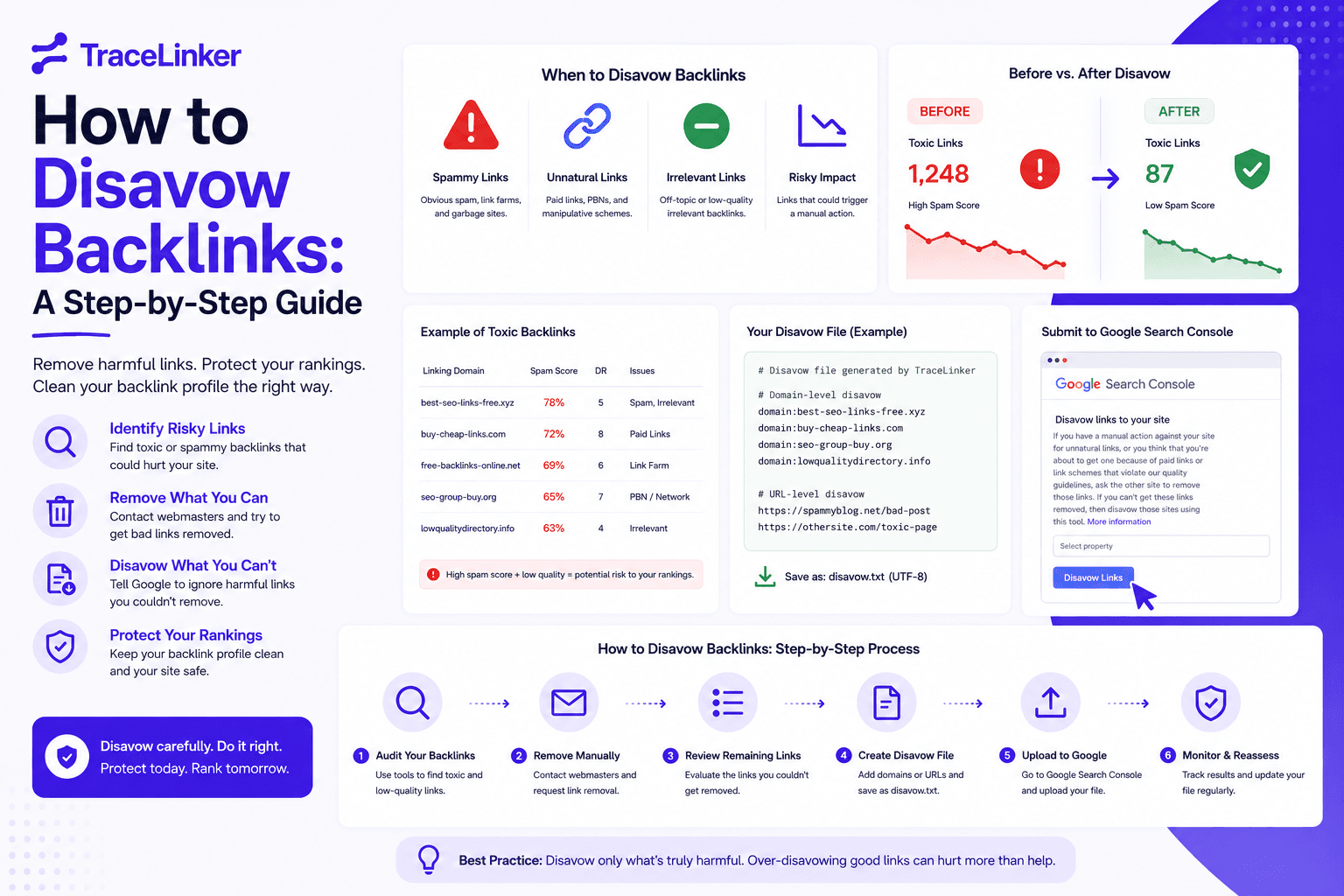


How to Disavow Backlinks: A Step-by-Step Guide
Not every backlink helps your site. Some can signal manipulation, spam, or low-quality tactics that put your rankings at risk. When you cannot remove those links manually, Google's disavow tool is the last line of defense.
This guide explains how to disavow backlinks safely: when to do it, how to find links worth disavowing, how to format the file, and how to submit it to Google Search Console.
What does it mean to disavow a backlink?
Disavowing a backlink tells Google to ignore it when evaluating your site. It does not remove the link from the web. It simply stops that link from passing negative signals to your site.
Think of it as asking Google: “Please do not count this link against me.”
When should you disavow backlinks?
Google says most sites do not need to use the disavow tool. Its algorithms are good at ignoring low-quality links automatically.
You should consider disavowing only if:
- You received a manual action in Google Search Console for unnatural links.
- You participated in link schemes, paid links, or other tactics that violate Google's spam policies.
- You have a large number of spammy, artificial, or low-quality links pointing to your site.
- A competitor is running a negative SEO campaign against you.
If none of these apply, you probably do not need to disavow. Disavowing good or neutral links can hurt your SEO.
When you should NOT disavow
- A few random spam links appear in your profile. Google usually ignores these.
- A competitor has more links than you. Quantity alone is not a reason to disavow.
- A link comes from a low-authority but legitimate site. Poor design or low traffic does not make a link toxic.
- You are unsure whether a link is harmful. When in doubt, do nothing.
The disavow tool is an emergency measure, not a routine cleanup tool.
Step 1: Find your backlinks
Before disavowing anything, you need to know what links point to your site. Use these sources:
- Google Search Console: go to Links > External Links for a list Google recognizes.
- Third-party tools: Ahrefs, Moz, Semrush, SE Ranking, Majestic.
- TraceLinker: use the free backlink checker or upload CSV exports from other tools into the backlink CSV analyzer.
For a deeper look at finding links, see our guide on how to find inbound links to a page.
Step 2: Identify toxic backlinks
Not all suspicious links are harmful. Look for clear signals of manipulation:
| Red flag | What to look for |
|---|---|
| Link farms | Domains with thousands of outbound links and little content |
| PBNs | Networks of sites with similar templates, IPs, or ownership |
| Irrelevant directories | Generic directories that accept any site |
| Exact-match anchors | Unnatural anchor text repeated across many sites |
| Foreign spam | Links from unrelated languages or niches |
| Hacked or malware sites | Sites injected with links without the owner’s knowledge |
| Sitewide links | Footer, sidebar, or comment links across many pages |
| Paid links | Links clearly placed for money rather than editorial value |
Use the anchor text analyzer to spot over-optimized anchors and the backlink CSV analyzer to classify links at scale.
Step 3: Try to remove links first
Google recommends removing harmful links before disavowing them. This is not always possible, but try:
- Contact the site owner and request removal.
- Remove content you control, such as old directory profiles or guest posts.
- Disavow only what you cannot remove.
Keep a record of your outreach attempts. This is useful if you later file a reconsideration request.
Step 4: Create a disavow file
The disavow file is a plain text file with a .txt extension. It must follow these rules:
- One URL or domain per line.
- Use
domain:to disavow an entire domain, e.g.domain:spammysite.com. - Use the full URL to disavow a specific page, e.g.
https://example.com/paid-post.html. - Comments start with
#. - Encoded in UTF-8 or 7-bit ASCII.
- Maximum 2MB and 100,000 lines.
Example:
# Disavow file for example.com
# Domains with spammy links
domain:spam-network.com
domain:cheap-links.xyz

# Specific URLs from otherwise legitimate sites
https://blog.example.com/paid-guest-post
https://forum.example.com/spam-thread
Tip: Disavow an entire domain when the whole site is spammy or when multiple bad links come from it. Disavow a specific URL only when the rest of the site is legitimate.
Step 5: Use the disavow file generator
If you are unsure about the format or want to avoid errors, use TraceLinker’s disavow file generator. It creates a Google-ready disavow.txt file from your list of toxic URLs and domains, with proper formatting and comments.
Step 6: Upload the disavow file to Google Search Console
- Go to the Disavow Links Tool.
- Select the property you want to manage.
- Click Disavow Links.
- Upload your
.txtfile. - Click Submit.
If you already have a disavow file for that property, uploading a new one will replace it. If you want to add links later, download the current file, add the new entries, and re-upload the combined file.
Note: The disavow tool does not support Domain properties in Search Console. If you use a Domain property, this tool does not apply.
Step 7: What happens after you submit?
- Google processes the file within a few days.
- The disavowed links continue to appear in backlink reports.
- Google ignores those links when evaluating your site.
- If you had a manual action, file a reconsideration request after disavowing.
- Rankings may take weeks or months to recover, depending on the situation.
Google does not send a notification when your file is processed. Monitor your traffic, rankings, and Search Console messages to gauge the impact.
Step 8: Maintain the file over time
Backlink profiles change. New spam links can appear at any time. Review your disavow file quarterly or whenever:
- You notice a sudden spike in spam links.
- You receive a new manual action.
- You acquire a domain with an existing disavow file.
- You want to remove entries that are no longer needed.
Use TraceLinker’s monitoring to detect new toxic links early. Its hourly, daily, or weekly re-crawls alert you when a link changes state or when new spam links appear.
Common mistakes when disavowing backlinks
- Disavowing too much: removing links that help can hurt rankings.
- Wrong format: subpaths like
example.com/en/cannot be disavowed. Use the full domain or URL. - Forgetting to remove first: always try removal before disavow.
- Not keeping a backup: save your previous disavow file before uploading a new one.
- Ignoring the root cause: stop the bad practice that created the toxic links.
- Expecting instant results: recovery takes time, especially after a penalty.
How disavowing relates to spam score
Disavowing does not directly lower your Moz spam score, because spam score is based on your visible link profile. However, it protects your site from the ranking impact of toxic links. For a complete cleanup strategy, combine disavow with the steps in our guide on how to reduce spam score.
Final thoughts
The disavow tool is powerful but dangerous in the wrong hands. Use it only when you have clear evidence of harmful links, and always try removal first. When you do disavow, be precise, keep records, and monitor the results.
If you want a faster, safer way to build your disavow file, use TraceLinker’s disavow file generator. Combine it with the free backlink checker, backlink CSV analyzer, and anchor text analyzer to find, evaluate, and disavow toxic links with confidence.