
Reclaim Lost Links
On paid plans, TraceLinker can auto-draft outreach when a monitored link goes dead. Here's how to review, edit, and send.
The reclaim engine is one of the highest-leverage paid features. When a monitored link transitions alive → dead, we re-crawl the source page, look for a contact email, and have our AI draft a short outreach. You wake up to drafts ready to review, not just a loss notification.
How it gets triggered
Three sources create reclaim drafts:
alive → deadtransitions on monitored links (automatic on Pro and Agency). No additional setup needed.- Manual "Compose outreach" from an audit row with a low score. You decide which audit row to convert.
- Manual "Compose outreach" from the link detail page. For when you want to draft outreach for a link still alive (e.g. asking the publisher to upgrade your nofollow to dofollow).
The reclaim flow
A monitored link goes dead
Last night's daily check ran on a link to your site. The page either 404'd or no longer contains the anchor. We log a transition alive → dead, fire an email, and trigger the reclaim worker.
The reclaim worker re-crawls the page
The worker fetches the source URL one more time, this time looking specifically for:
- A
mailto:link in the page or footer. - A "Contact us" link, then we crawl that page for emails.
- Hardcoded email addresses in the page text (e.g.
[email protected]). - The page author's profile if the publishing platform exposes it (WordPress
/author/{slug}/).
The first email we find at a domain match (matching the source URL's domain) is stored as contact_email. If we can't find one, the field stays null and you'll need to add the email manually.
The AI drafts an email
Our AI model receives a prompt with:
- The source URL.
- The target URL.
- The anchor text that used to be there.
- The transition type and date (e.g. "removed on May 1").
It returns a JSON {subject, body} that follows our outreach template: short, polite, references the previous link, asks if it can be restored, no pressure.
The draft lands in /dashboard/reclaim
You arrive at the morning to find the draft waiting in your Reclaim queue with status drafted.
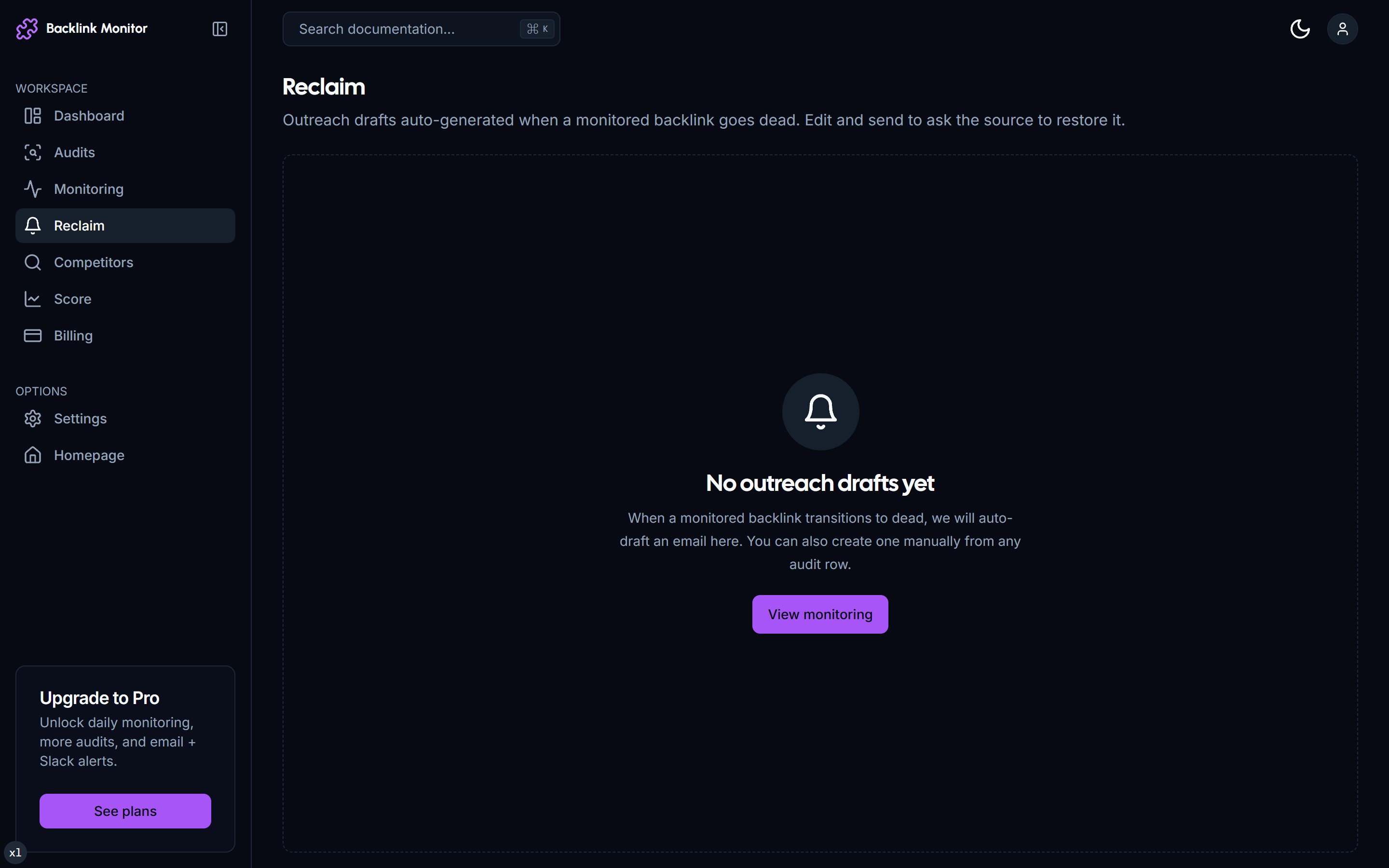
The Reclaim queue page
/dashboard/reclaim is the central inbox for outreach drafts.
| Column | Meaning |
|---|---|
| Source domain | Where the dead link lived. |
| Target page | What it pointed at on your site. |
| Drafted | When the draft was created. |
| Contact | The email we extracted (or "-" if none found). |
| Status | drafted, sent, replied, closed. |
Filters at the top let you narrow to drafts only, by date range, or by status. Bulk actions: mark closed (give up), regenerate draft (try a different prompt), assign to a teammate (via shared inbox - Pro/Agency).
Reviewing a single draft
Click any row to open the draft detail page.
📸 Reclaim draft detail with editable subject, body, and contact
What you can edit:
- Subject line - usually fine to keep as drafted.
- Body - the editable textarea. The default opens conversational and brief; trim or add as you like.
- Contact email - if we couldn't extract one, paste it manually here. If we got one wrong, replace it.
- CC / BCC - optional, for shared inboxes or BCCing yourself.
You also see the original transition context: the dead anchor, the transition timestamp, and a snapshot of the source page from the last alive check.
Sending the draft
Three send options:
Open in Gmail
A mailto: URL opens Gmail's compose with subject, body, and recipient prefilled. You add anything you want, hit Send in Gmail. Status flips to sent automatically.
Open in your default email client
Same mailto: flow but for users who use Apple Mail, Outlook, or another desktop client.
Send via TraceLinker (Pro+)
We send via Resend on your behalf, from outreach+{token}@yourdomain.com (configurable in [Settings → Email]). Replies are forwarded to your account email, and we mark status replied automatically when a reply arrives.
This is the only option that gives you reply tracking inside the dashboard. Pro is required.
What the AI draft looks like
A typical draft for a alive → dead transition reads like this (anonymized):
Subject: Quick note about a link on [page-title]

Hi there,

I noticed your article "[title]" used to include a link to my piece on [target-topic]. Looks like it was removed during a recent edit.

If it was an accident, I'd be grateful if you could re-add it - the original anchor was "[anchor-text]". If it was intentional (content shifted, no longer relevant, etc.), no worries at all - just thought I'd ask.

Either way, thanks for the original mention. The article was a great resource then and still is.

Cheers,
[your-name]
You can override this template entirely in [Settings → Outreach templates] (Pro+).
Quotas and rate limits
| Plan | Drafts per month |
|---|---|
| Free | 5 |
| Pro | 50 |
| Agency | 500 |
Hitting the cap shows a 402 with an upgrade link. Drafts that you mark closed without sending still count toward the cap (the AI call already happened).
There is no rate limit on send if you're using "Open in Gmail" - you're sending from your own inbox. For "Send via TraceLinker", we throttle to 60 emails per hour per domain to avoid burning your sender reputation.
Outreach templates (Pro+)
If you want the drafts to match your voice, edit the template in Settings → Outreach templates. The template is a Handlebars string with these variables:
{{your_name}}        Your name from settings
{{source_url}}       Where the link lived
{{source_title}}     Page title from the last alive crawl
{{target_url}}       Where it pointed
{{target_title}}     Title of your destination page
{{anchor_text}}      Anchor that was used
{{transition_date}}  When the link went dead
You can have separate templates for each transition type (alive → dead, alive → changed, "ask for upgrade") and the engine picks the right one automatically.
Best practices
- Reply within 48 hours if a publisher replies. The AI keeps the tone professional - matching that tone in your follow-up keeps the conversation warm.
- Don't send the same draft twice. We won't auto-draft for the same source URL within 30 days, but if you mark a draft closed and try to manually re-trigger, you'll get a warning.
- Edit before sending if the AI got the context wrong. The model has only the source page snapshot - if it makes a factual claim about the publisher that's wrong, fix it.
- Track outcomes. Status flow:
drafted → sent → (replied | closed). Honest tracking lets you measure your reclaim rate, which most SEOs find lands at 25-40% on legitimate placements.
Troubleshooting
No contact email was extracted. Some sites hide email addresses behind contact forms or scrub them with anti-scrape logic. Manually add the email - if the site only has a contact form, paste the form URL into the body and add a note to fill it out.
The draft references the wrong anchor. The model uses the last-known anchor from monitoring history. If the anchor changed multiple times, the draft might reference an old one. Edit the body before sending.
The draft tone is wrong for my voice. Edit your outreach template (Pro+) to match how you actually write. The default is intentionally generic.
A draft was generated for a link that didn't actually die. False positives happen on aggressive Cloudflare bot blocks. Mark the link as false positive in the link detail page - we'll re-verify and close the draft if the link is actually fine.
Next
- Email Notifications - tuning when reclaim drafts trigger emails to you.
- Set Up Monitoring - the prerequisite for automatic reclaim drafts.
- Plans & Pricing - when to upgrade for higher draft caps and Send via TraceLinker.