
Run a Backlink Audit
Step-by-step guide to running an AI-powered backlink audit using CSV upload, plus how to use Google Search Console for index checks afterward.
A backlink audit is the entry point of every TraceLinker workflow. This guide covers running one end to end, including CSV upload, deduplication, and what to do with the results.
When to run an audit
- Onboarding a new client - import their backlink list from Ahrefs/Semrush export, get an AI scored profile in one screen.
- Vetting a backlink supplier - paste the CSV they delivered, see which placements are real, valuable, and not toxic.
- Refreshing a profile - rerun an audit on the same CSV monthly to track which placements changed or died.
- Pre-disavow review - audit a profile to identify the toxic candidates before generating the disavow file.
Quotas
| Plan | Audits / month | Max items per audit |
|---|---|---|
| Free | 1 | 50 |
| Pro | 5 | 200 |
| Agency | 50 | 1,000 |
If you hit the audit count cap mid-month, you'll see a 402 error with an upgrade prompt. Items per audit is a hard limit per submission - splitting a 500-link Pro list across two audits is fine, but exceeds the per-audit cap.
CSV upload
The most flexible input. Works with exports from any tool (Ahrefs, Semrush, Linkody, Monitor Backlinks, your own scrape, or a manual GSC export).
Open the New Audit form
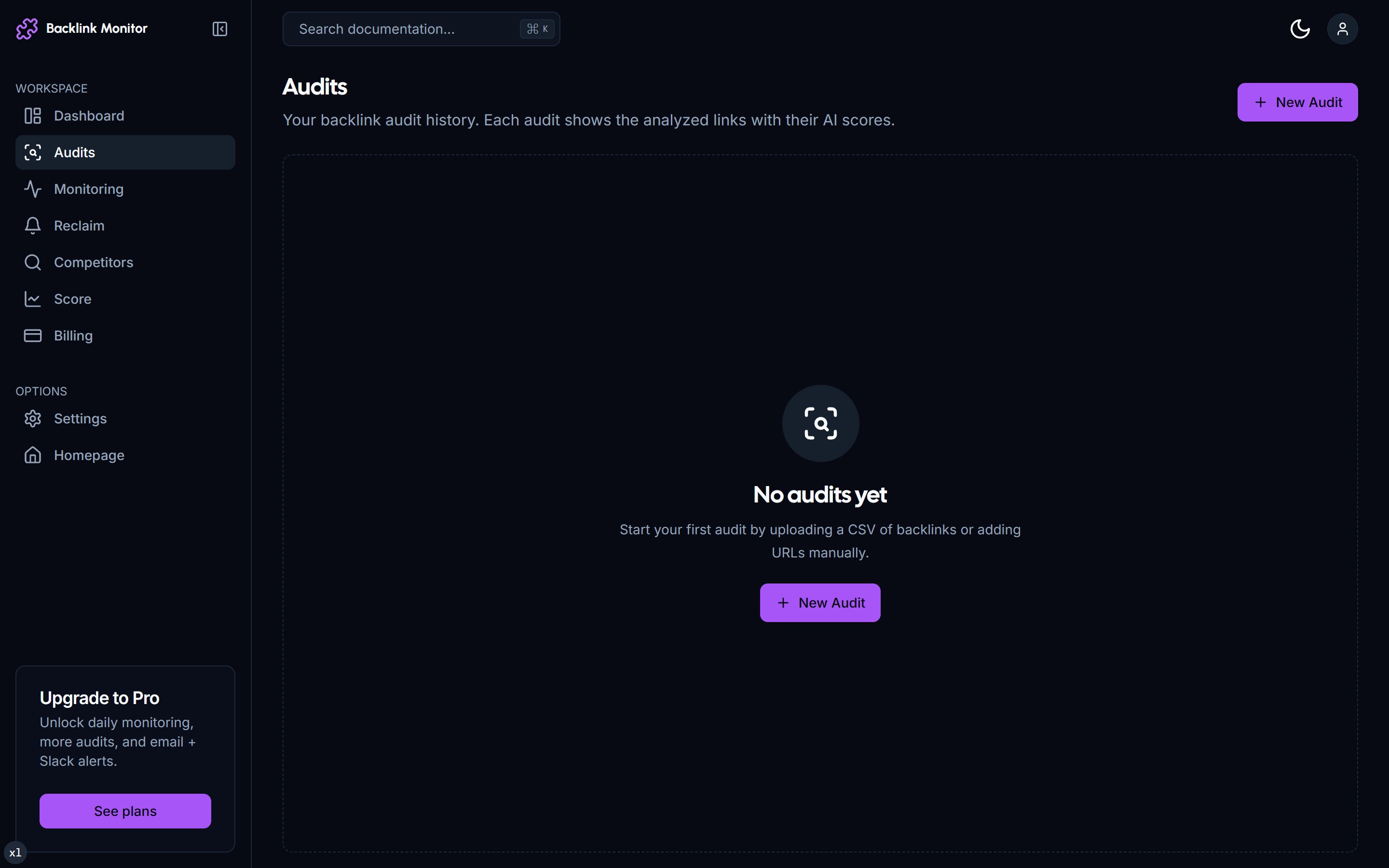
From the dashboard, click Audits in the sidebar, then + New Audit in the top right.
Choose CSV upload
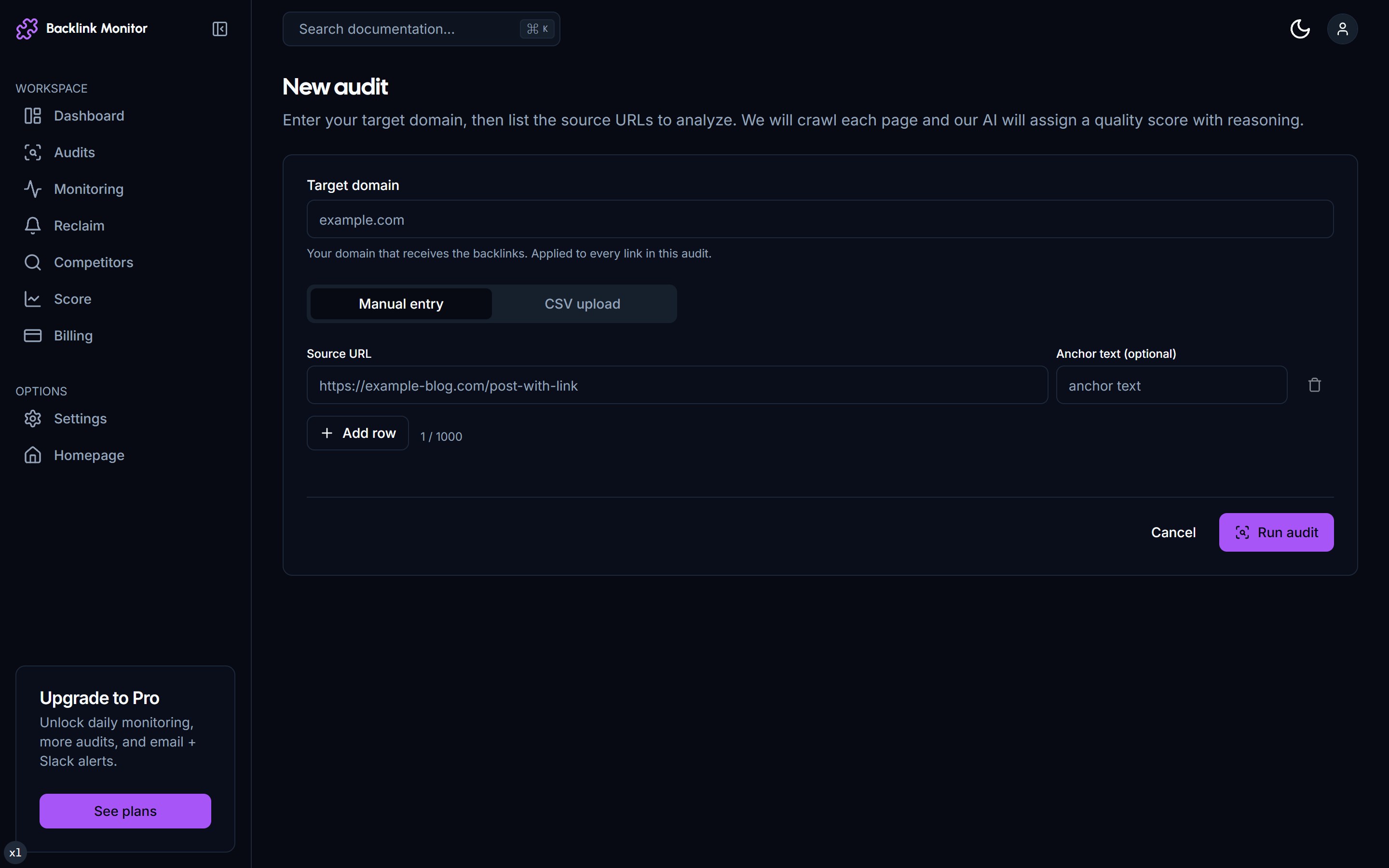
The form defaults to the CSV tab.
Prepare your CSV
The required columns are:
source_url,target_url,anchor_textsource_url is where the link lives. target_url is where it points (your domain or a specific page). anchor_text is optional - we extract it from the page if missing.
Extra columns (like Ahrefs Domain Rating, URL Rating, External Backlinks) are ignored, so you can paste any export verbatim. See the CSV Format reference for converting common exports.
Set the target domain
Above the CSV box, enter the target domain (e.g. yoursite.com). This is what we use to filter links during audit - any source URL we crawl will only contribute discovered backlinks if at least one anchor on the page points at this domain (or a subdomain or path under it).
Paste or upload
Either paste your CSV directly into the textarea, or drag a .csv file onto the upload zone. The form previews a row count before you submit.
Click Start audit
The form does an immediate insert into the backlink_audits table with status queued, then redirects you to the detail page. The audit runs server-side and is unaffected by you closing the tab.
Google Search Console is for index checks only
TraceLinker can connect to Google Search Console, but Google does not expose a backlinks API. GSC will not import your backlinks automatically. To get backlinks into an audit, use a CSV export from Ahrefs, Semrush, or a manual GSC export.
Once an audit is running or complete, the GSC integration enables the Check index button on the audit detail page. This calls Google's URL Inspection API for source URLs on domains you verified in GSC and records whether each page is indexed. See GSC Integration for the connection flow.
CSV vs GSC trade-offs for source data:
| CSV | GSC | |
|---|---|---|
| Coverage | Whatever your tool found | Only what Google indexes |
| Anchor text | Usually included | Often missing |
| Timing | As fresh as your export | Lags 2-3 days |
| Setup | None | One-time OAuth |
| Cost | Free | Free |
Best practice: CSV for the initial audit, then use GSC index checks to verify which discovered pages are in Google's index.
Watching the audit run
Once submitted, you land on the detail page at /dashboard/audits/{id}. The page polls every 2 seconds while the audit is running.
📸 Audit detail page mid-run with progress bar at 47% and recent rows
What you see while running:
- Progress bar - percentage complete (
processed / total). - Status banner -
queued,processing,done, orfailedwith an error message. - Recent rows - the last 5 scored links stream in live so you can sanity-check early.
- Cancel button - stops processing and marks the audit as
cancelled.
Average runtime: about 5 seconds per link including crawl + AI score. A 50-link audit is roughly 1 minute. A 200-link Pro audit is closer to 2 minutes.
You don't have to wait. Close the tab, do other work. An email arrives when it finishes (default setting).
Reading the results table
Once status flips to done, the table fills with one row per discovered backlink:
📸 Audit detail completed with full results table
| Column | What it shows |
|---|---|
| Source URL | The page on which the link was found. Click to open in a new tab. |
| Target | The page on your site the link points at. |
| Anchor | Anchor text. Long anchors are truncated with a tooltip. |
| Status | alive (link found), changed (target changed since last seen), dead (no anchor found). |
| Score | 1-100 with a colour band: red below 30, amber 30-69, green ≥70. |
| Reasoning | One sentence explaining the score. Click the row to see the full thing. |
| Toxicity | safe / caution / toxic badge. |
| Actions | Number of AI-suggested actions (3-5 per row). Click to expand. |
Sortable columns: Score, Toxicity, Status. Filterable: by status, score range, toxicity flag.
Acting on results
Top of the page has bulk-action buttons:
📸 Bulk action toolbar above results table
- Move to monitoring - takes selected rows (default: rows scoring 70+) and adds them to your monitored links list.
- Download disavow.txt - generates a Google-ready file from rows where
is_toxic = true. See Disavow Toxic Links. - Compose outreach - opens the outreach modal for selected low-score rows. See Reclaim Lost Links.
- Export CSV - downloads the full results table for sharing or archive.
Rerunning an audit
You can rerun any audit from the detail page (button next to Export). A rerun creates a new audit row pointing at the same input, then crawls and scores everything fresh. Because the originals are kept, you can compare snapshots over time.
This is the easiest way to spot:
- Links that decayed (score dropped, status flipped).
- Links that went dead but you missed because they weren't in monitoring.
- New links Google indexed that weren't in last month's CSV.
Troubleshooting
"No backlinks discovered" The audit ran but no source URL contained a link to your target domain. Check:
- Is
target_urlcorrect? Common typo: missing protocol, wrong subdomain. - Are the source URLs reachable? If they all 404, you'll see them as
deadrows but no scores.
Audit stuck at "queued" for more than a minute Refresh the page. The worker may be backlogged. Pro and Agency get higher worker priority.
"Failed: rate limited by source"
Some target sites block rapid crawls (Cloudflare bot challenge). The audit completed everything it could; the blocked rows show status=failed. You can retry just those rows via the row dropdown.
"Score column shows '-'" The AI API call failed for that row (rate limit, timeout). Click Rescore in the row dropdown to retry that single row.
Next
- Set Up Monitoring - what to do with the rows scoring 70+.
- Disavow Toxic Links - what to do with the rows flagged toxic.
- AI Scoring Methodology - what the score really means.
- CSV Format - converting Ahrefs/Semrush exports.