
Set Up Monitoring
Add backlinks to continuous monitoring, choose the right check frequency, and tune alerts so you only hear about transitions that matter.
Monitoring is what turns TraceLinker from a one-shot audit tool into a continuous backlink defense system. You pick the links you want to keep, we re-check them on schedule, and you get an email the moment something changes.
What gets monitored
The links you most want to know about:
- High-score audit results (scores 70+).
- Money-page links (links pointing at your top-converting pages).
- Paid placements (every link you paid for, regardless of score).
- Links you spent outreach effort to acquire.
Don't monitor every link. Free plan covers 5 links, Pro 100, Agency 1,000 - keep the slots for placements you'd actually act on if they died.
Adding a link to monitoring
There are three ways:
From an audit
Easiest. After an audit completes, select rows (or use the "Score 70+" preset filter) and click Move to monitoring. The selected links are inserted into the monitored_links table with status alive and the next check scheduled per your plan frequency.
📸 Audit detail with rows selected and Move to monitoring button highlighted
From the monitoring page
Click Monitoring in the sidebar, then + Add link. A modal asks for source URL, target URL, optional label. Useful for one-off additions outside an audit (e.g. a paid placement you want to track immediately).
📸 Add link modal on the monitoring page
Via CSV
In the Add link modal, switch to the CSV tab and paste a list of source/target pairs. Bulk add for migrations from another monitoring tool.
Picking a check frequency
Frequency depends on plan and on the link's importance.
| Frequency | Plan | When to use |
|---|---|---|
| Hourly | Agency only | Money-page links you paid for. Catch removal within 60 min. |
| Daily | Pro, Agency | Default for most monitored links. Catch within 24h. |
| Weekly | Free, Pro, Agency | Acceptable for low-stakes links. Catch within 7d. |
Free plan defaults to weekly and can't change it. Pro and Agency users can set frequency per-link or set a default in Settings → Monitoring defaults.
The monitoring table
Click Monitoring in the sidebar to see all currently monitored links.
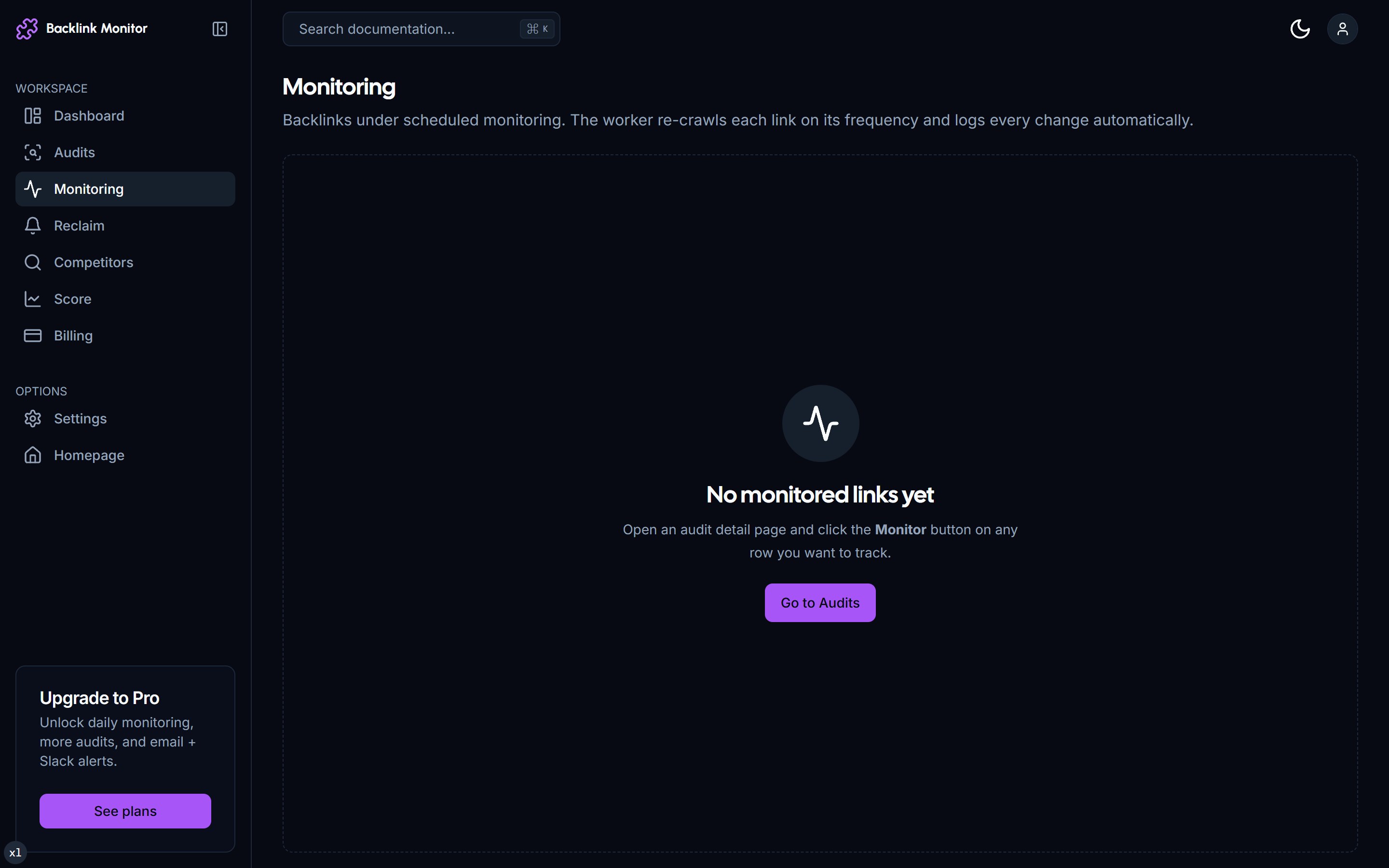
Columns:
| Column | Meaning |
|---|---|
| Source | Page hosting the link. |
| Target | Where it points. |
| Status | Latest check result (alive / changed / dead). |
| Last check | Timestamp of the most recent check. |
| Frequency | Check schedule for this link. |
| Transitions | Count of historical transitions. Click to see the timeline. |
| Score | AI score from when the link was added. Updates if a transition rescores. |
The status column has color coding: green for alive, amber for changed, red for dead. Sorting by status puts dead at the top so you spot regressions instantly.
Inspecting a single link
Click any row to open the link detail page. You see:
📸 Link detail page with timeline of all checks
- Top card - source URL, target URL, current status, AI score and reasoning.
- Timeline - every check ever run on this link, with status and any transition flagged.
- Notifications panel - per-link mute toggles for transition types you don't care about (e.g. some users mute
alive → changedif anchor edits aren't actionable). - Manual actions - "Run check now" forces an immediate re-check. "Pause" temporarily stops scheduled checks. "Remove" deletes from monitoring (audit history is kept).
Transitions
A transition is when status changes between two consecutive checks. This is what triggers emails and dashboard alerts.
Common transitions
alive → changed The link still works but something changed. Most common causes:
- Anchor text edited (often a brand-name update).
- Surrounding paragraph rewritten.
dofollowflipped tonofolloworugc/sponsored.- Link moved to a different position on the page.
The email shows a diff so you can decide if the change is good (brand mention added) or bad (your keyword anchor stripped).
alive → dead The link is gone - removed from the page or page itself 404s. This automatically triggers a reclaim draft. The email arrives with a link to review and send the auto-drafted outreach.
dead → alive The link came back. Rare but useful for paid placements where you've been chasing recovery, or for links removed during a site redesign and restored after.
Email format
Every transition email contains:
- The transition type, source URL, and target URL.
- A short diff (anchor text before/after, dofollow change, etc.).
- A direct link to the link detail page.
- For
alive → dead, a link to the auto-drafted reclaim email.
You can switch transition emails to a daily digest in Settings → Notifications if you don't want one email per event.
Tuning alerts
Default settings email you on every transition. Most users tune this within the first week:
- Mute
alive → changedif anchor edits aren't actionable for you. They are noisy on big sites. - Mute
dead → aliveif you don't track paid placements. - Switch to daily digest if you monitor 100+ links and don't want individual emails.
- Per-link muting for one specific noisy domain that keeps changing anchors.
All available in the Notifications settings page.
Bulk operations
Top of the monitoring page has bulk actions:
📸 Monitoring page bulk action toolbar
- Pause selected - stops scheduled checks without removing from monitoring.
- Resume selected - restarts checks.
- Remove selected - deletes from monitoring (audit history kept).
- Re-check selected - forces immediate checks on selected rows. Useful before sending a status update to a client.
Scaling beyond 1,000 links
Agency cap is 1,000. If you legitimately need more (large agency with many clients), email support. We rarely raise it for individual users; instead, archive old links you no longer need by removing them from monitoring (audit history is kept regardless).
What happens behind the scenes
For the curious - each scheduled check:
- Cron worker picks up the row when
next_check_at <= now. - The crawler fetches the source URL with
Mozilla/5.0UA, no JS execution. - We parse the DOM for anchors pointing at the target domain.
- Compare with previous check's anchor: same →
alive, different →changed, none found →dead. - Insert a row into
monitor_logs, updatemonitored_links.status, schedule the next check. - If status changed, fire transition pipeline (email + reclaim draft + dashboard event).
Cost: about $0.0001 per check (the crawler is free, no AI call unless transition rescore is enabled).
Troubleshooting
A link shows dead but I see it in my browser
Some sites are heavy SPAs that don't SSR their links, or block our user agent. Use the row's Mark false positive action - we re-verify with a different fetch strategy. If it still fails, switch the row to manual verification.
Notifications stopped arriving
Check Settings → Notifications for "All transition emails muted". Also check your email provider's spam folder; whitelist [email protected] if it routed there once.
Daily check ran twice in 24 hours
Daily means "approximately every 24 hours from last_check_at". If you forced a manual recheck, the next scheduled one shifts forward.
Next
- Reclaim Lost Links - what to do when a transition fires
alive → dead. - Email Notifications - tuning every email setting.
- Plans & Pricing - when 5/100/1,000 monitored is the right level.